Skip to content
WelcomeBob

Help center

How can we help?

Guides and answers for the WelcomeBob app and the intercom.

01 — Onboarding

02 — In app

Onboarding

Get started in 4 steps

From invitation to open door.

  1. You have been invited1

    You have been invited

    You have received an invitation via email from your administrator.

  2. Download the app2

    Download the app

    Follow the link in the email to download the WelcomeBob app to your mobile.

  3. Create your user3

    Create your user

    Use the same email to which the invitation was sent.

  4. You are ready4

    You are ready

    Open the door, receive calls, and use the intercom directly from the app.

User guide

Using the app

Simple guides for the most common tasks in WelcomeBob — from receiving calls to inviting new users and solving typical issues.

Get started

How to get started with WelcomeBob — from invitation to an account that is ready to use.

How to do it

  1. 1

    Open the invitation

    You will receive an email invitation. Tap the link in the email to open WelcomeBob and see which property you were invited to.

  2. 2

    Create an account or log in

    If you do not have an account, choose Create account and fill in your name, email and password. If you already have an account, choose Log in.

  3. 3

    Confirm and enter

    Once your account is created, the invitation is accepted automatically and you land on the home screen where your intercom is ready.

Good to know

  • You have 14 days to accept an invitation before it expires.
  • Use the same email address the invitation was sent to — otherwise it will not work.

If something goes wrong

I cannot find the invitation
Check your spam folder. Your administrator can resend it from the app.
The link has expired
Ask your administrator to send a new invitation. The old one cannot be reactivated.
Receive calls from the intercom

How to answer a call when a visitor rings your intercom.

How to do it

  1. 1

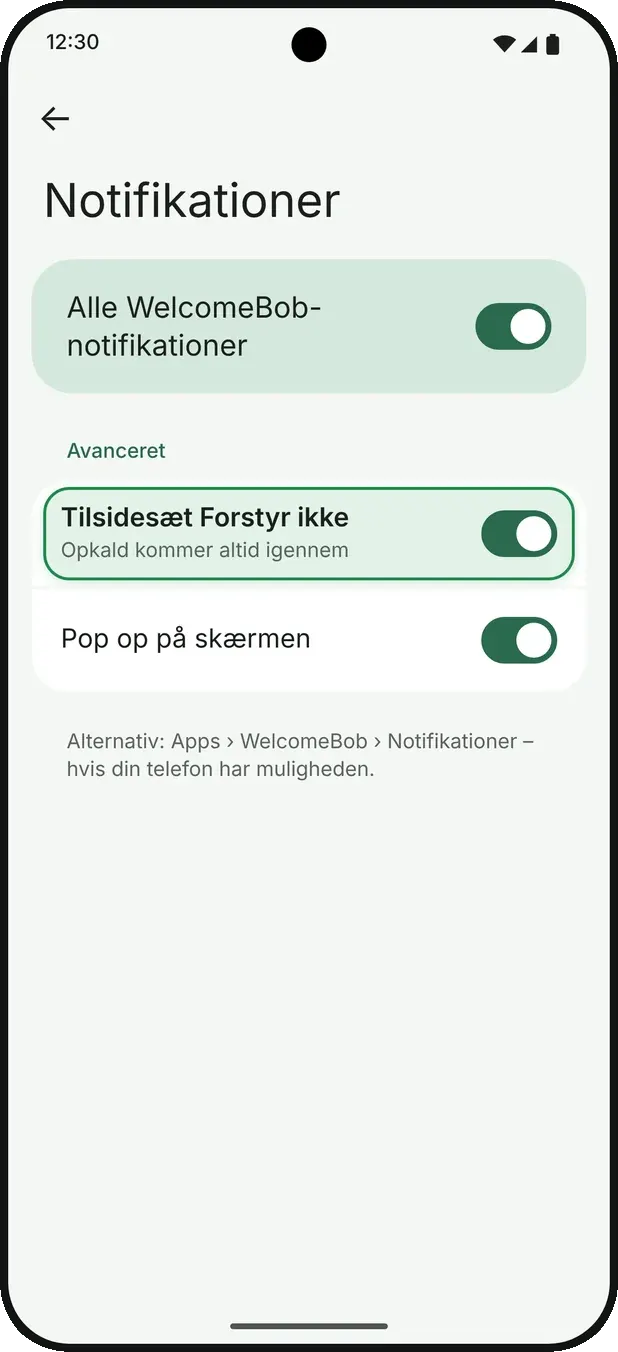
    You receive a notification

    When someone rings, your phone rings like a normal call — even when the screen is locked.
  2. 2

    Answer the call

    Swipe or tap to accept. The app opens and shows live video of the visitor together with buttons for microphone, hang up and unlock.

  3. 3

    Talk to the visitor

    You can speak, mute or unmute the microphone and unlock the door directly from the call. Hang up when the conversation is over.

Good to know

  • Calls are always shown full-screen in portrait format.
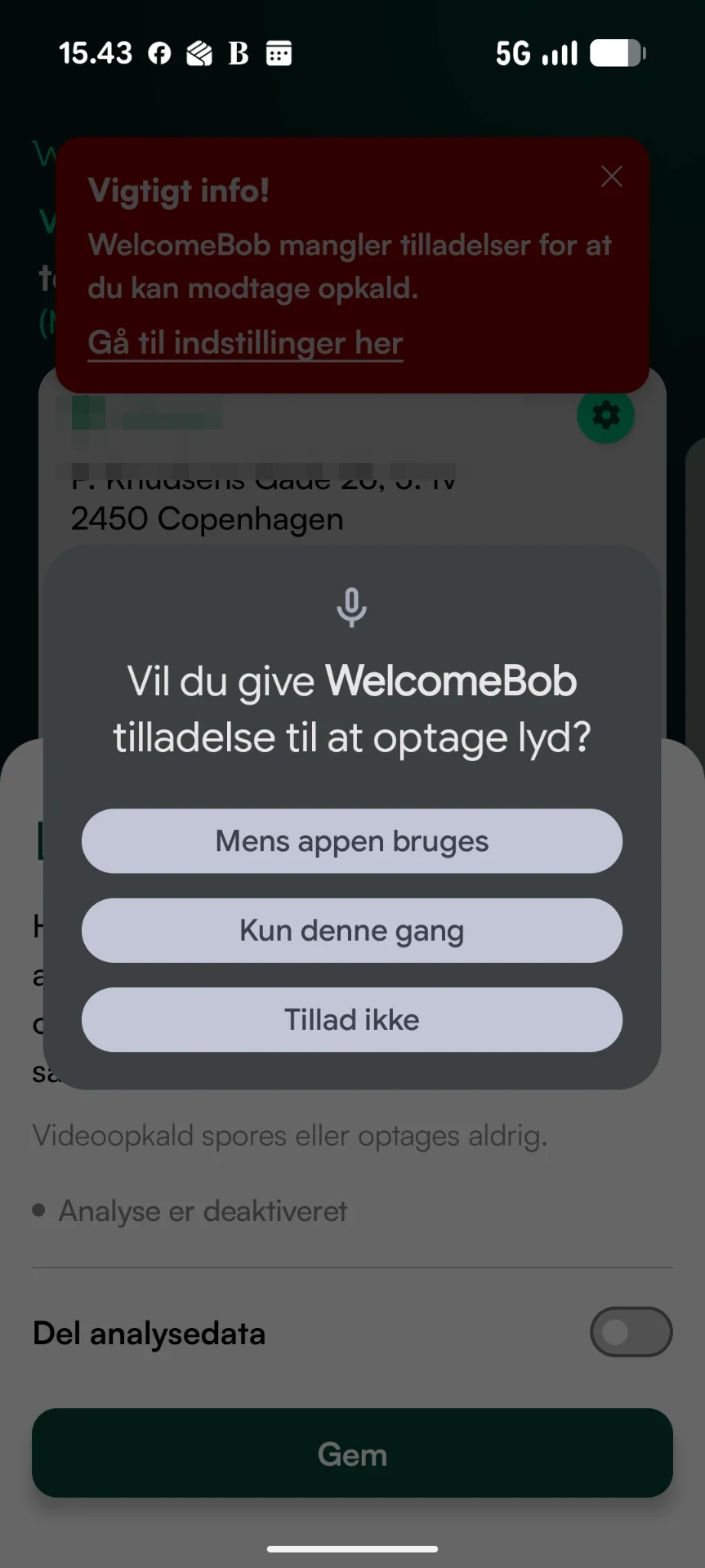
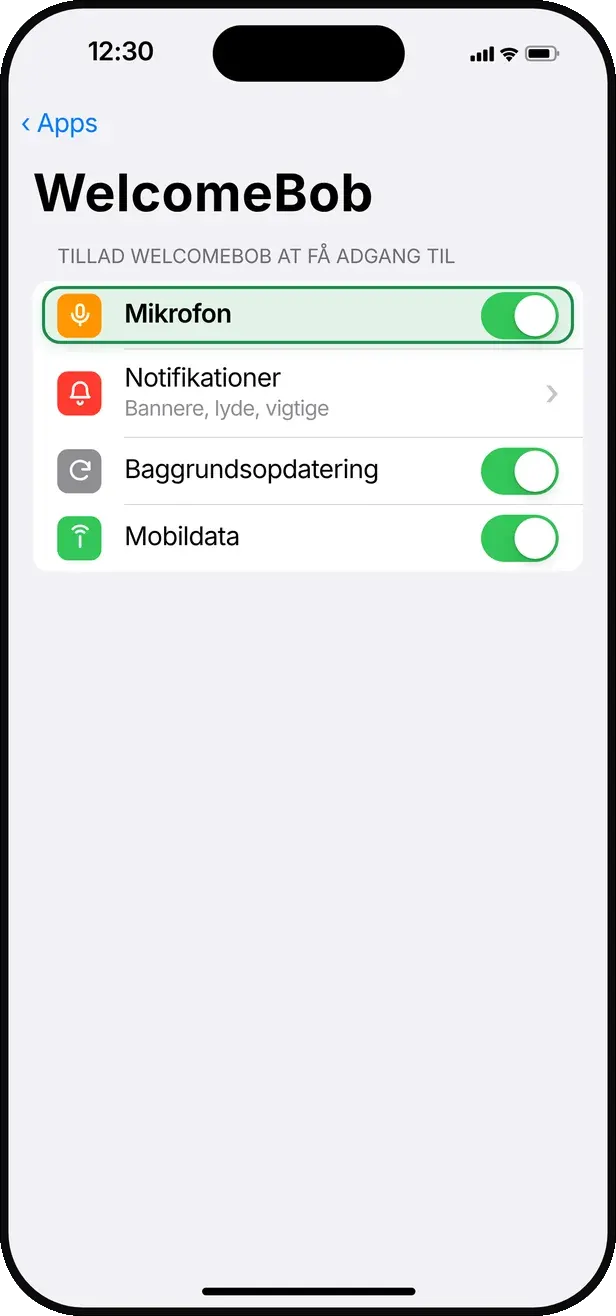
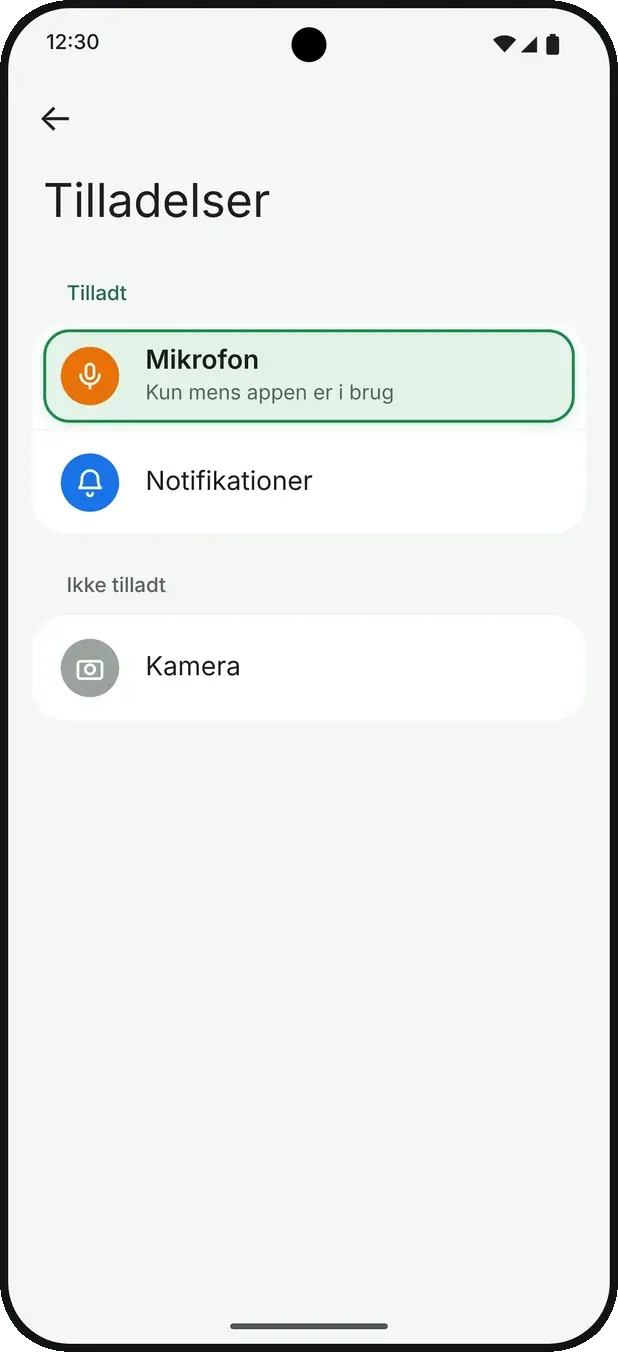
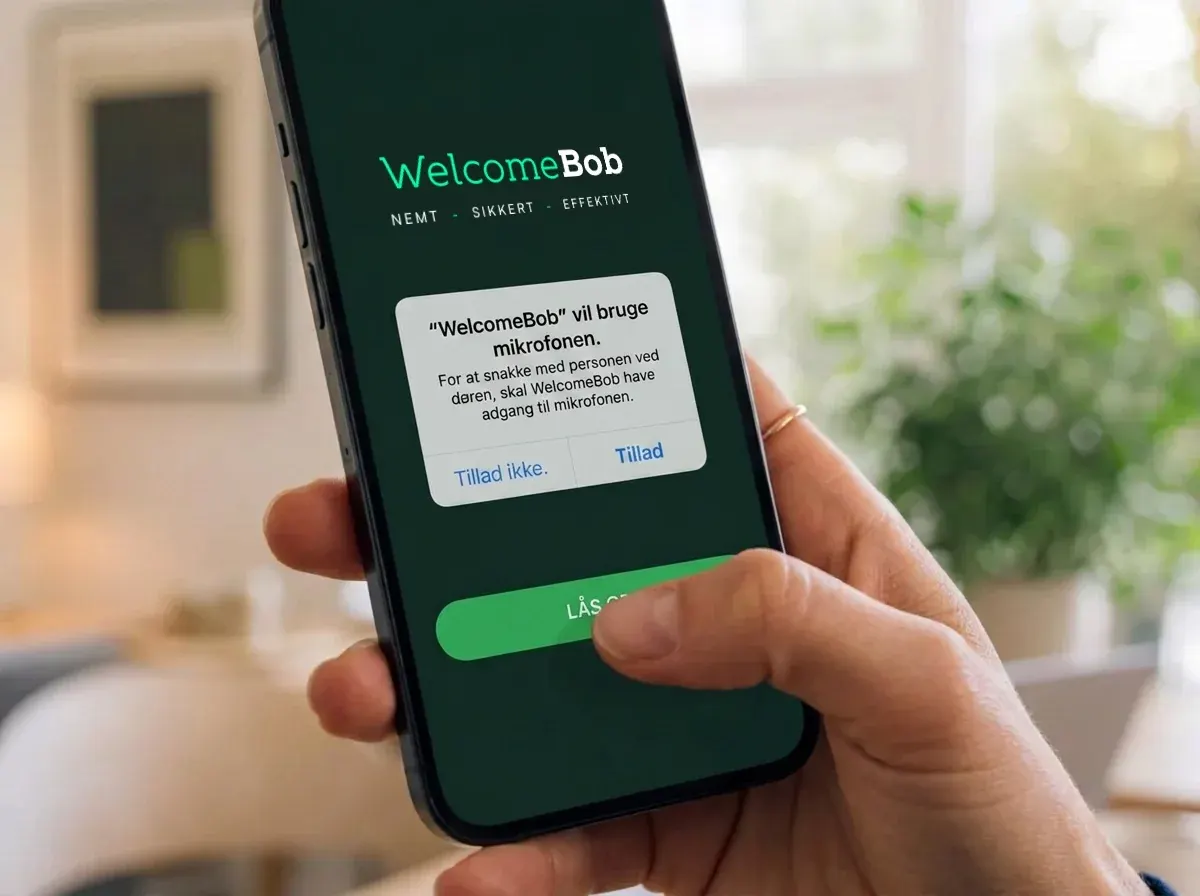
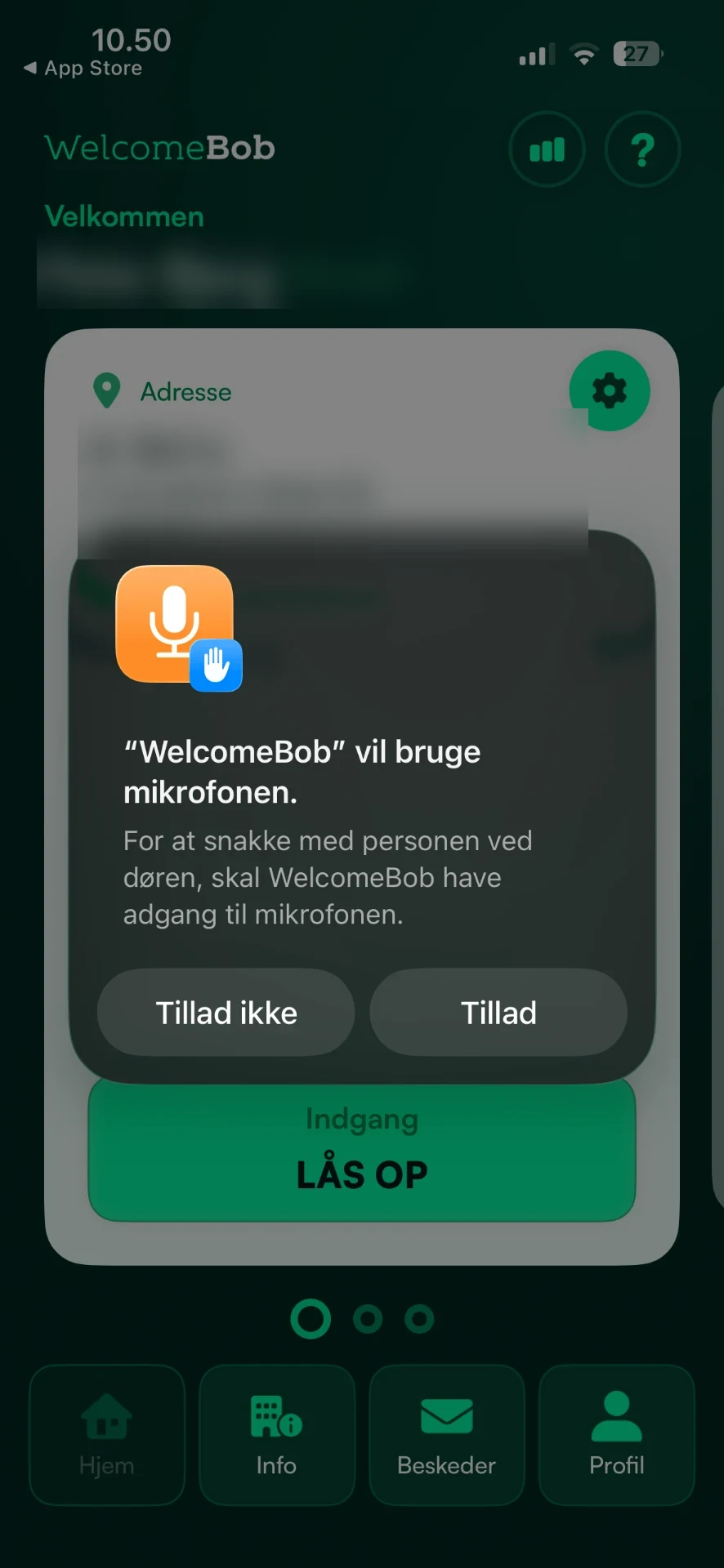
  • If microphone access is turned off in your phone settings, a warning appears during the call.

If something goes wrong

I am not receiving calls
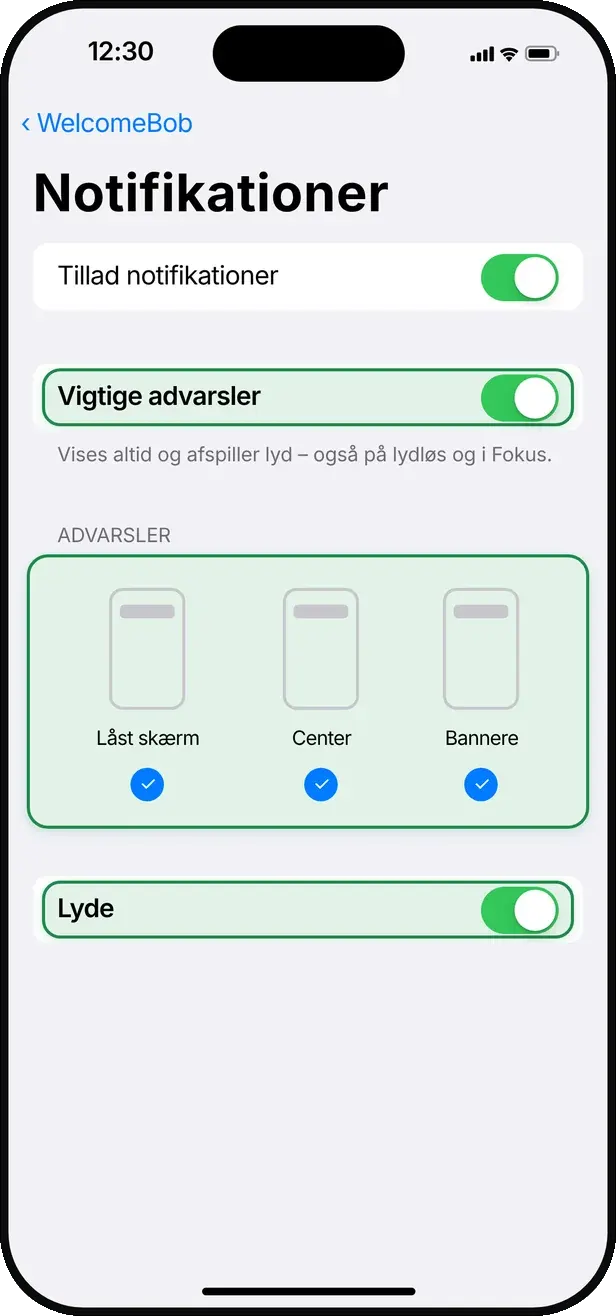
Make sure notifications are enabled for WelcomeBob. See the guide ‘Notifications are not working’.
I cannot hear or be heard
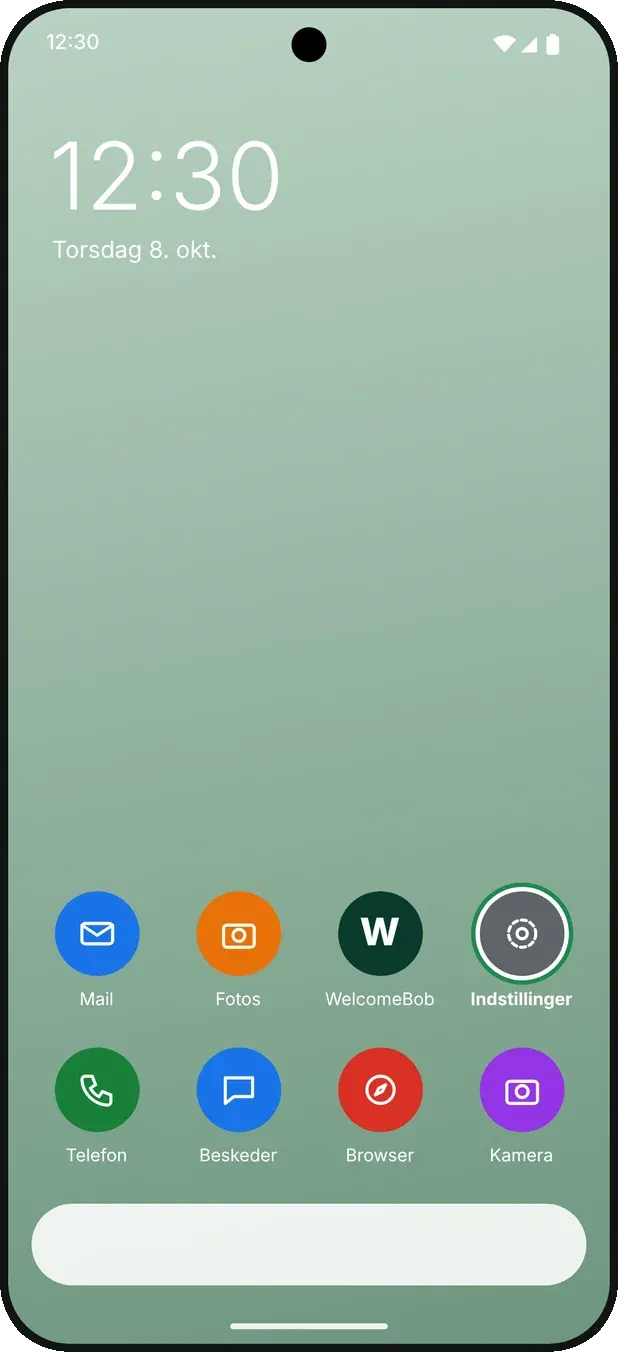
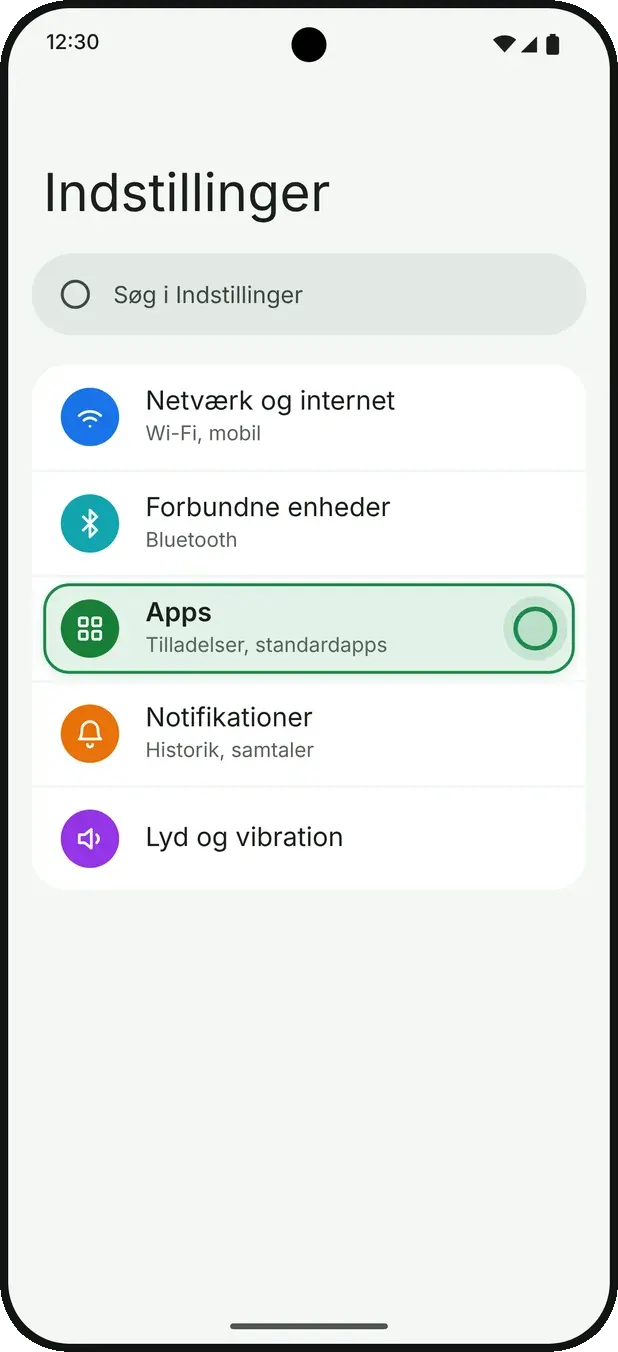
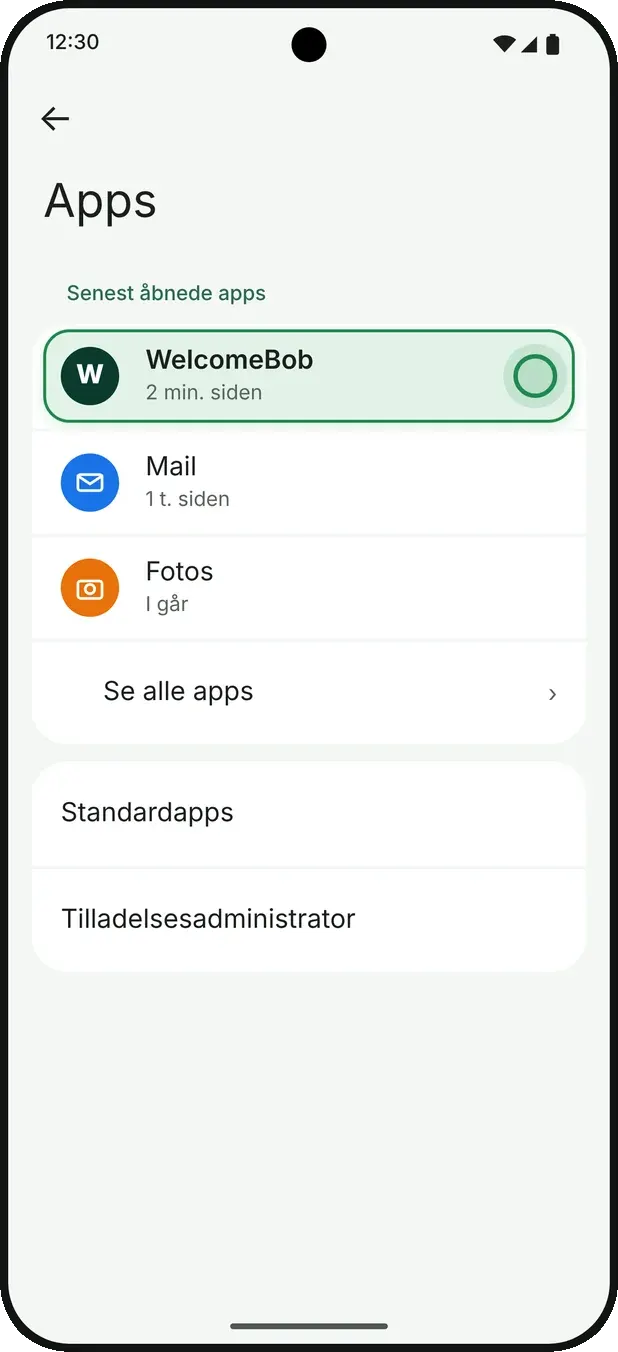
Check that microphone access is enabled both inside the call and in your phone settings for WelcomeBob.

Unlock the door

You can unlock the door both during a call and directly from the home screen when you are at the entrance yourself.

How to do it

  1. 1

    Find the intercom

    Go to the home screen. If you have multiple properties, swipe through the carousel to the correct one.

  2. 2

    Tap unlock

    Tap the unlock button on the intercom card or directly during a call. A confirmation tray slides up from the bottom.

  3. 3

    Wait for confirmation

    The tray shows ‘Unlocking…’ while the connection is created, then confirms that the door is open.

Good to know

  • You can always unlock from the app — even if your name is hidden on the intercom.
  • The confirmation closes automatically after a few seconds.

If something goes wrong

The door does not open
Check your internet connection and try again. If the issue continues, contact your administrator.

Change the name of your intercom

How to do it

  1. 1

    Open the back of your card

    On the home screen, tap your intercom card to flip it. This is where you find the manager shortcuts for your own home.

  2. 2

    Choose what to change

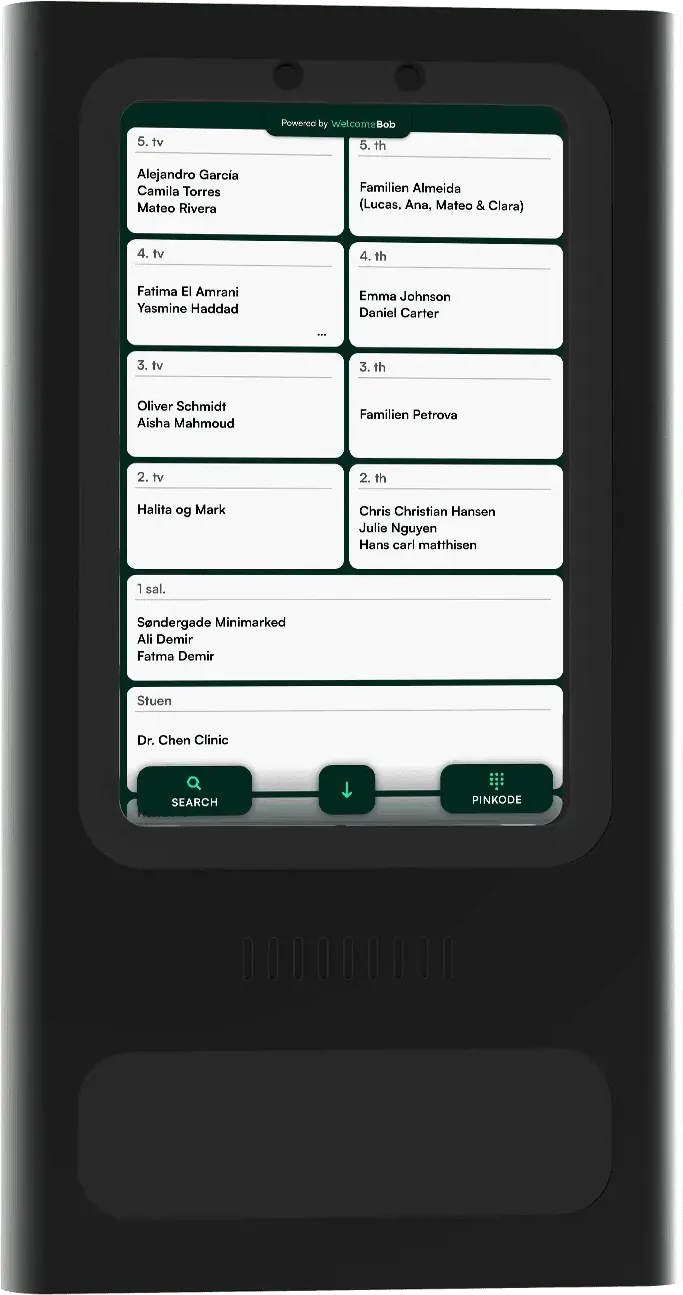
    You can edit the display name, change the apartment presentation or manage users in your own home.

  3. 3

    Save the change

    Tap Update. A short confirmation appears at the top of the screen when the change has been saved.
Good to know

  • You can choose between user names or a custom apartment name such as ‘The Smith Family’.
  • The back side of the card is only visible to managers of the home.

If something goes wrong

I cannot see the manager options
Your account is not a manager for this home. Ask the current manager to assign the role to you — or contact the administrator of the property.

Invite other users

As a manager of your home, you can invite family, residents or colleagues to use the intercom together with you.

How to do it

  1. 1

    Open the user list

    Flip your intercom card and choose Users & invitations. Here you can see current users and pending invitations.

  2. 2

    Send an invitation

    Tap Invite new user, enter the person's email address and tap Send invitation. The person receives an email with a link.

  3. 3

    Follow up if needed

    You can always resend or remove an invitation from the list using the three-dot menu.

Good to know

  • An invitation is valid for 14 days.
  • You can invite several people in a row without closing the form.

If something goes wrong

The person did not receive the invitation
Ask them to check spam. You can also resend the invitation or use a different email address.
I want to remove a user
Find the user in the list, tap the three dots and choose Remove user. Access is removed immediately.

Messages from the property

Your property can send important updates about water, heating, deliveries or events.

How to do it

  1. 1

    Open messages

    Tap the Messages tab at the bottom. If you have multiple properties, first choose the relevant property.

  2. 2

    Read a message

    Tap a message to see the full content, sender and time. Some messages also include a calendar event.

  3. 3

    Filter or add to calendar

    Use the filter icon to show all, unread or read messages. Calendar events can be added directly to your calendar.

Good to know

  • A red badge on the Messages tab shows how many unread messages you have.
  • The newest messages are always shown first.

Account and settings

How to change your name, password and settings — or delete your account.

How to do it

  1. 1

    Go to Account

    Tap the Account tab at the bottom. Here you can see your name, email and settings.

  2. 2

    Edit what you want to change

    Tap the pencil next to your name to edit it. Choose Change password to update your password.

  3. 3

    Confirm the change

    A short confirmation appears at the top of the screen when your change has been saved.

Good to know

  • You can also manage consent and intercom visibility here.
  • Even if your name is hidden, you can still unlock the door from the app.

If something goes wrong

I want to delete my account
Choose Delete account at the bottom and confirm with your email and password. This action cannot be undone.

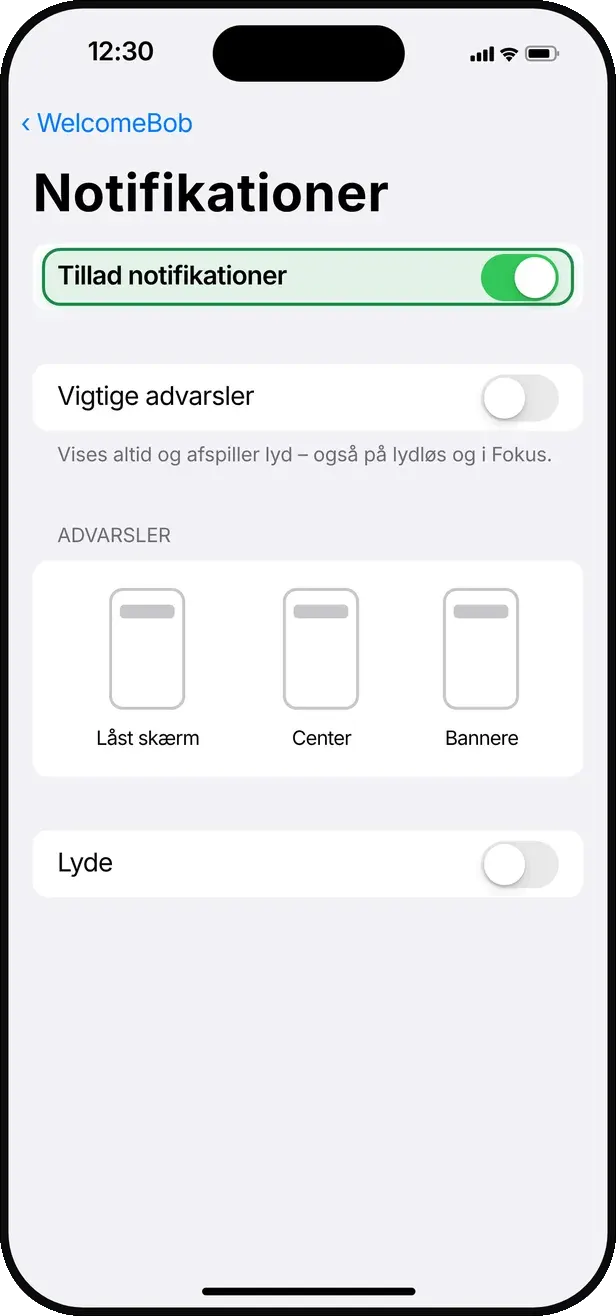
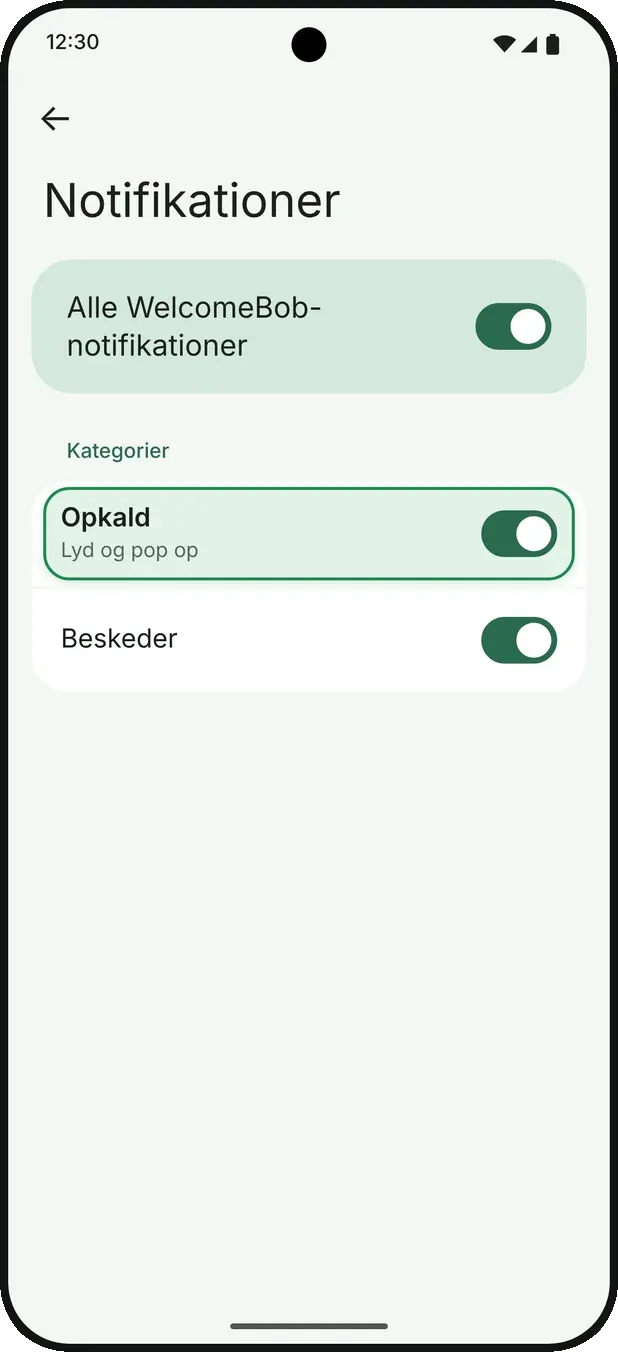
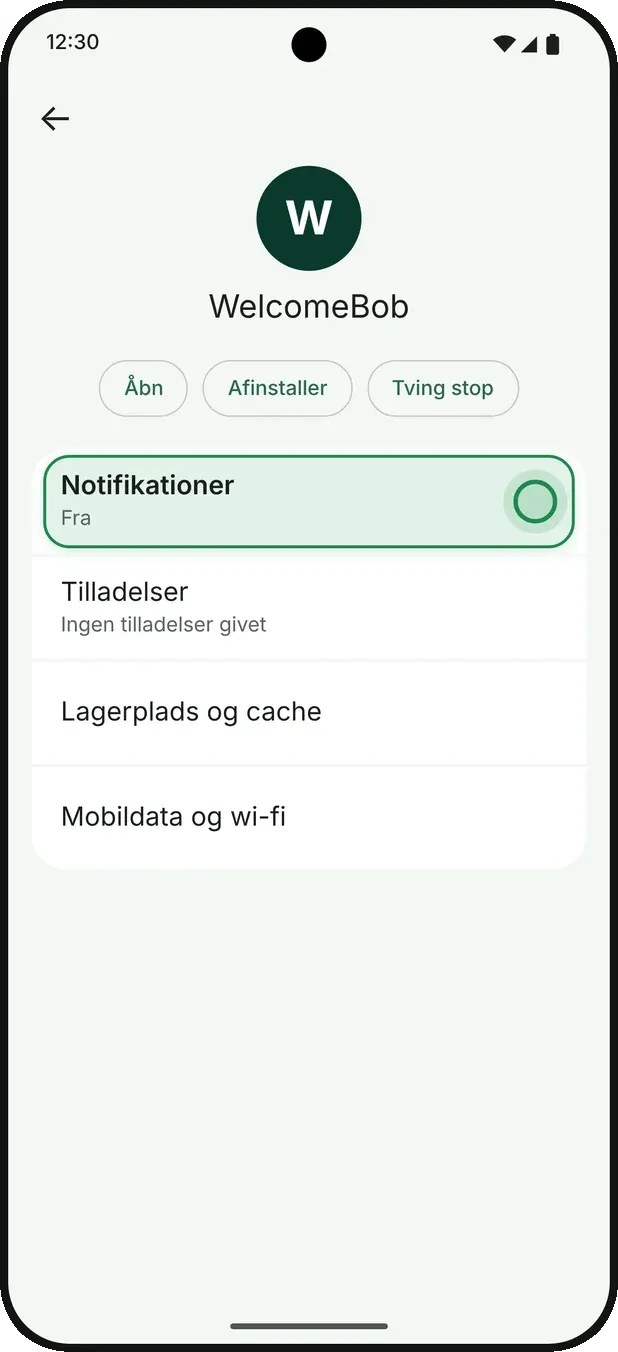
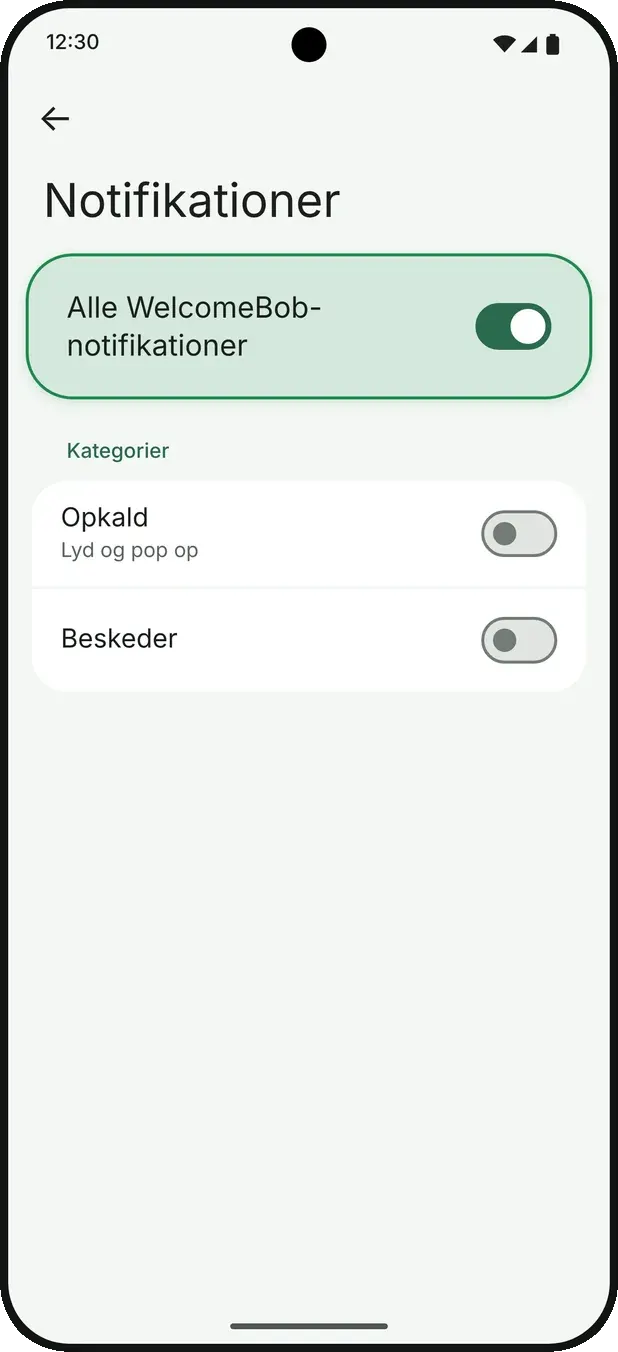
Notifications are not working

Not receiving calls or messages? In most cases, the issue is related to notification settings.

How to do it

  1. 1

    Open notification status

    Go to Account and tap the bell icon at the top. Here you can see whether notifications are enabled.

  2. 2

    Check your phone settings

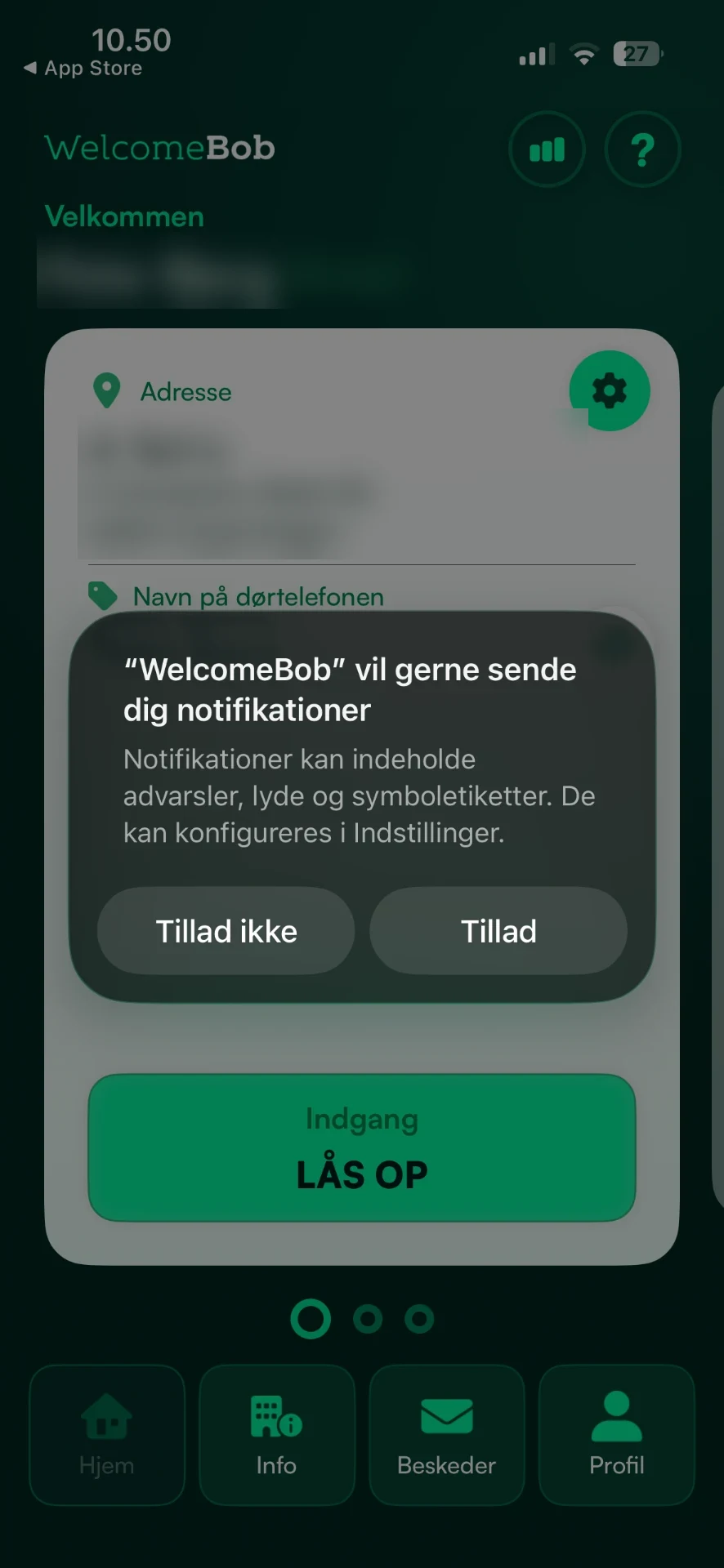
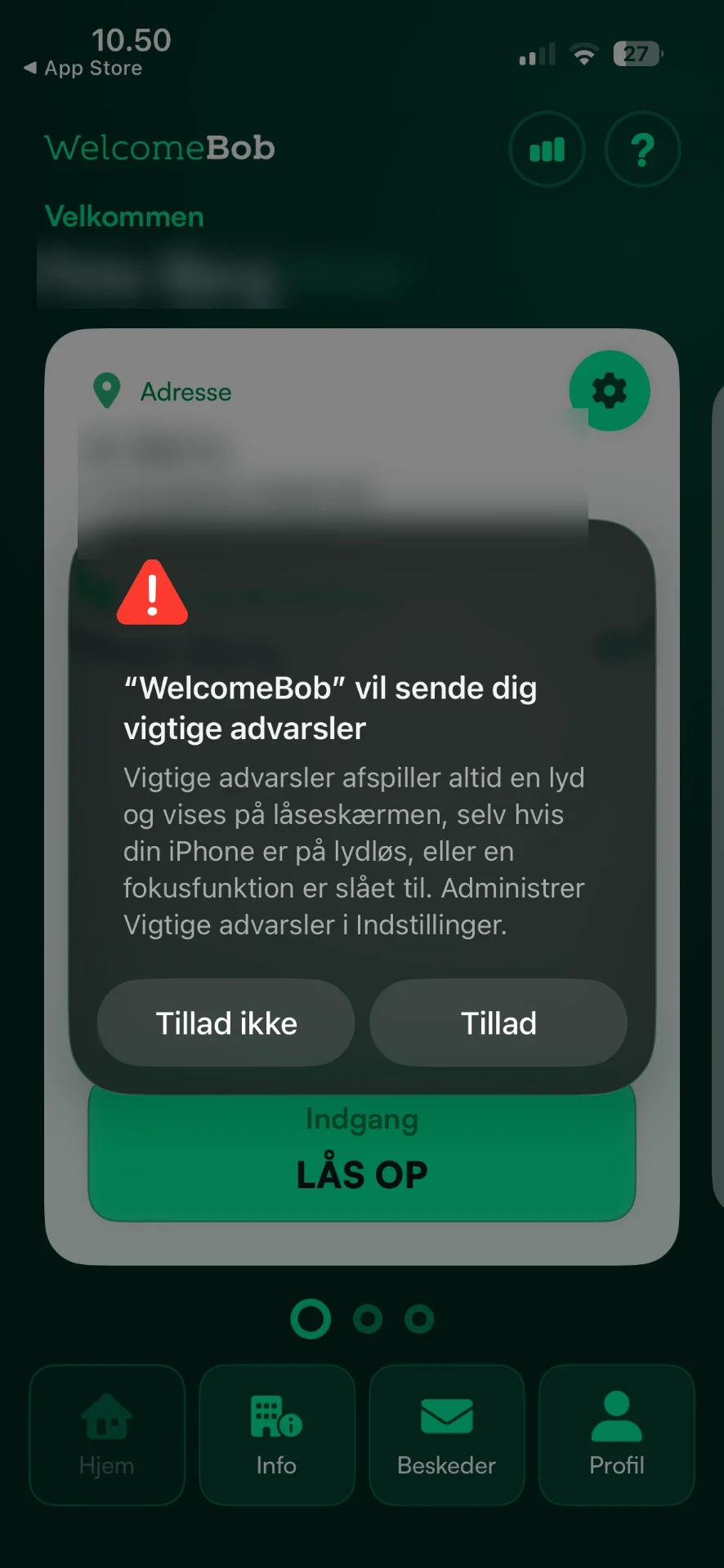
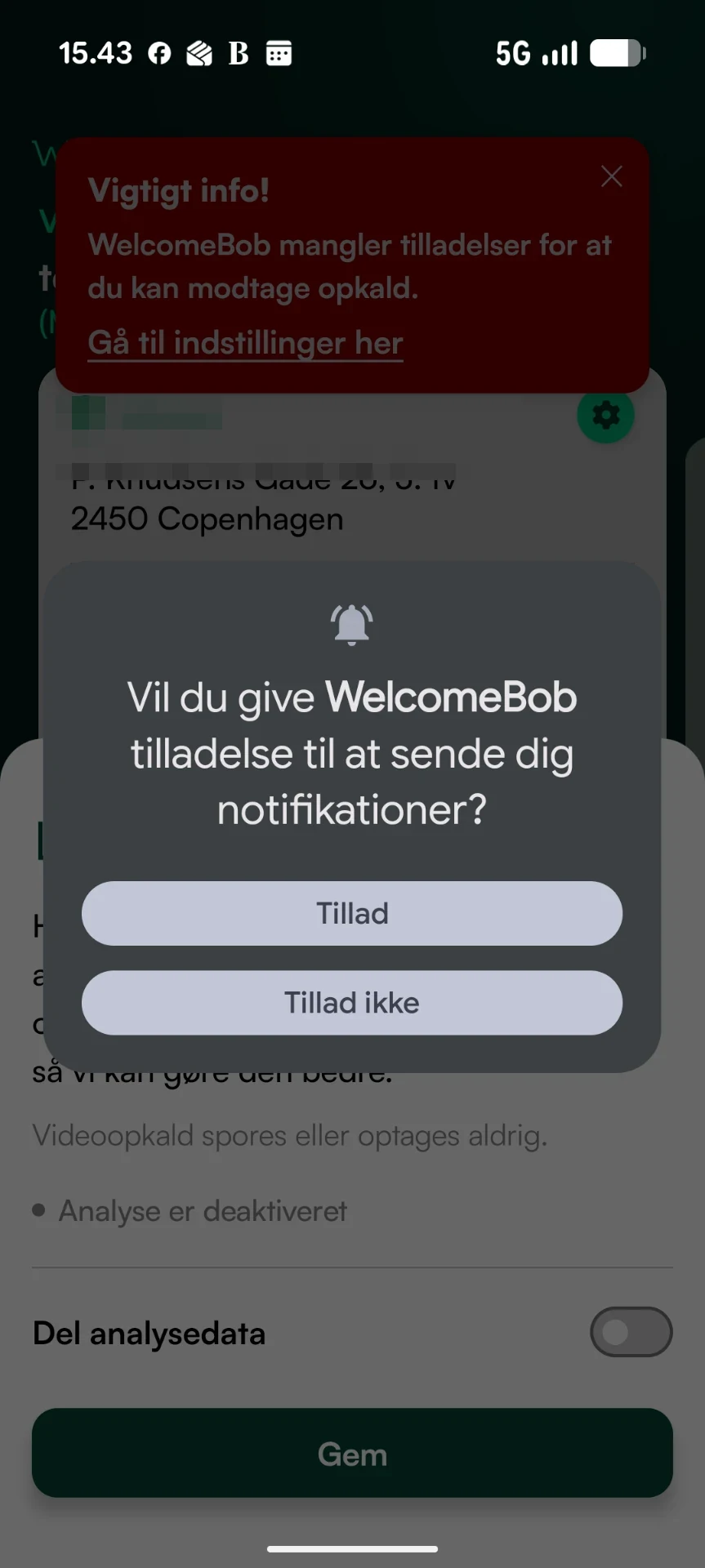
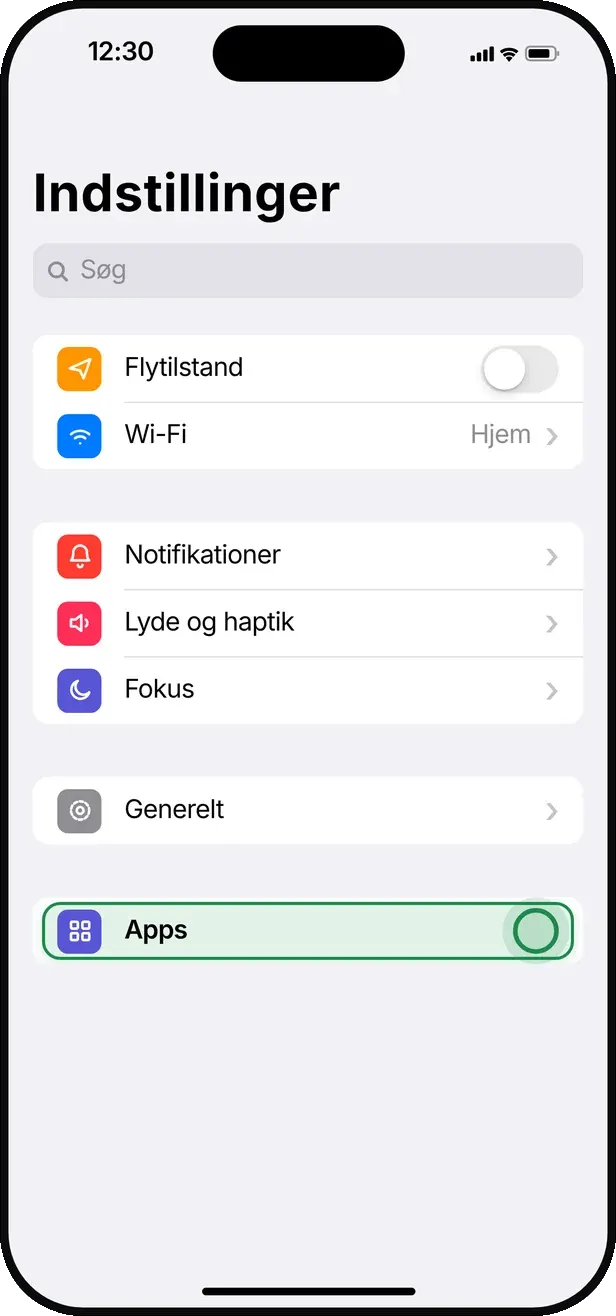
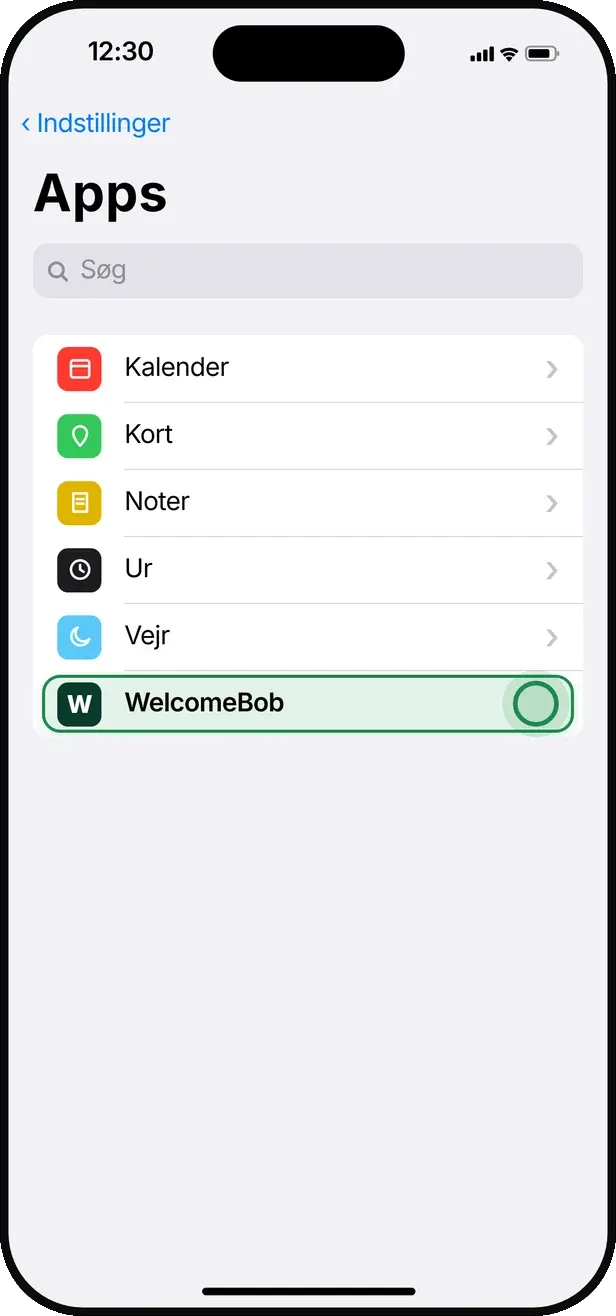
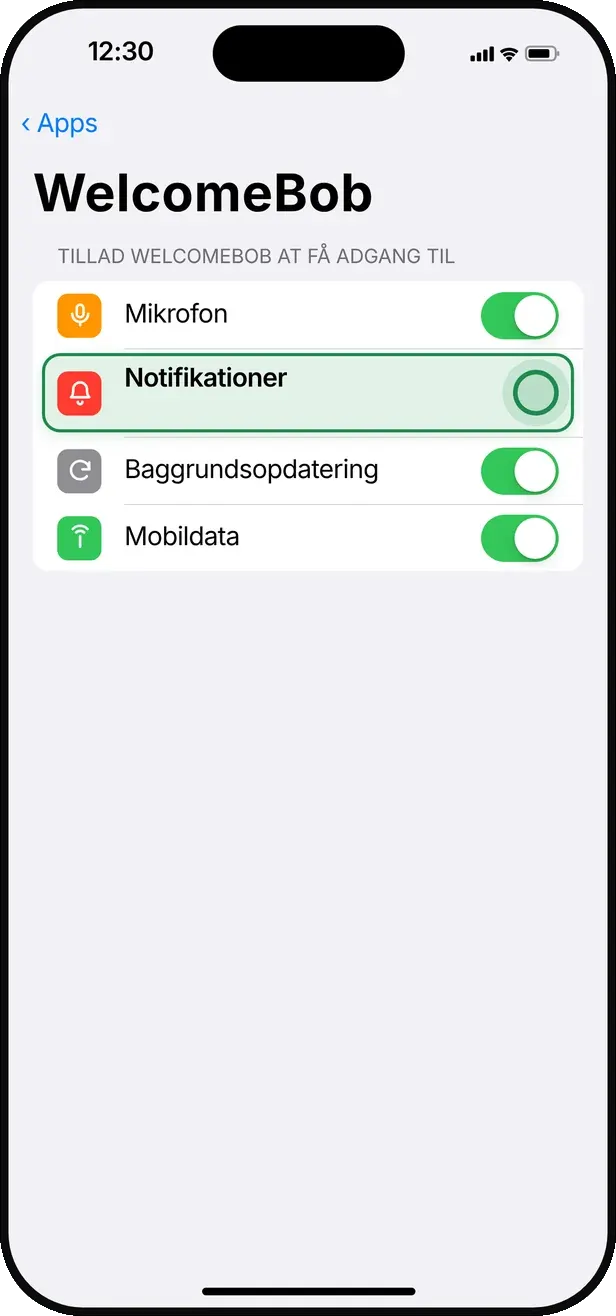
    Open your phone settings and give WelcomeBob permission for notifications, sound and lock screen alerts.

  3. 3

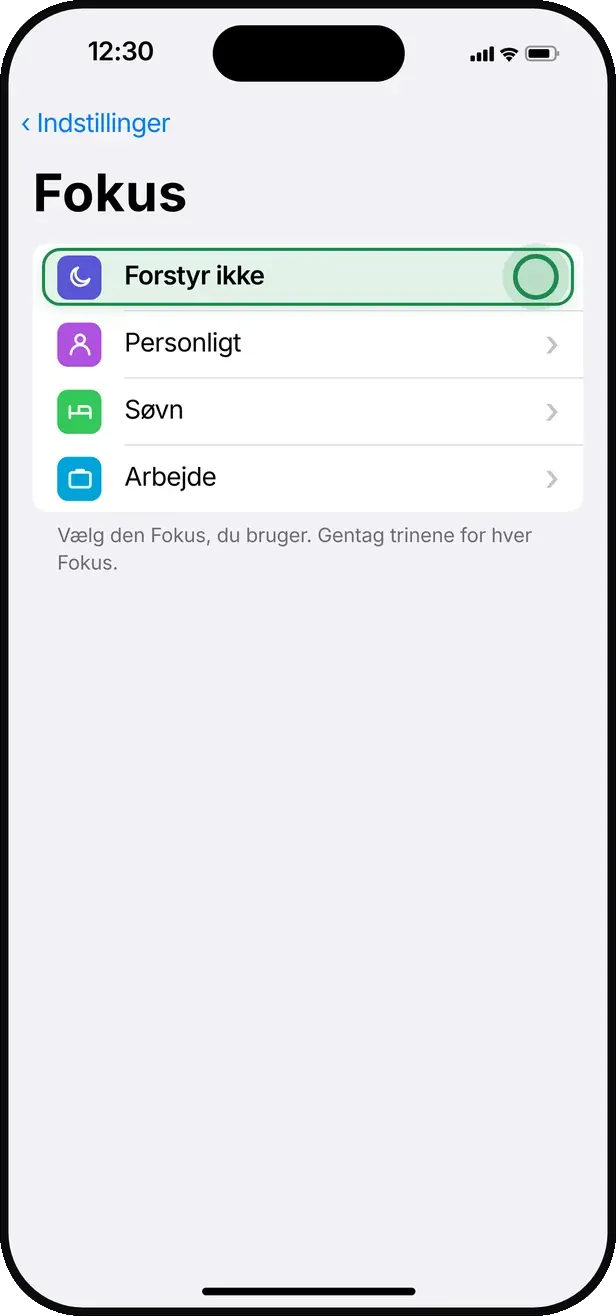
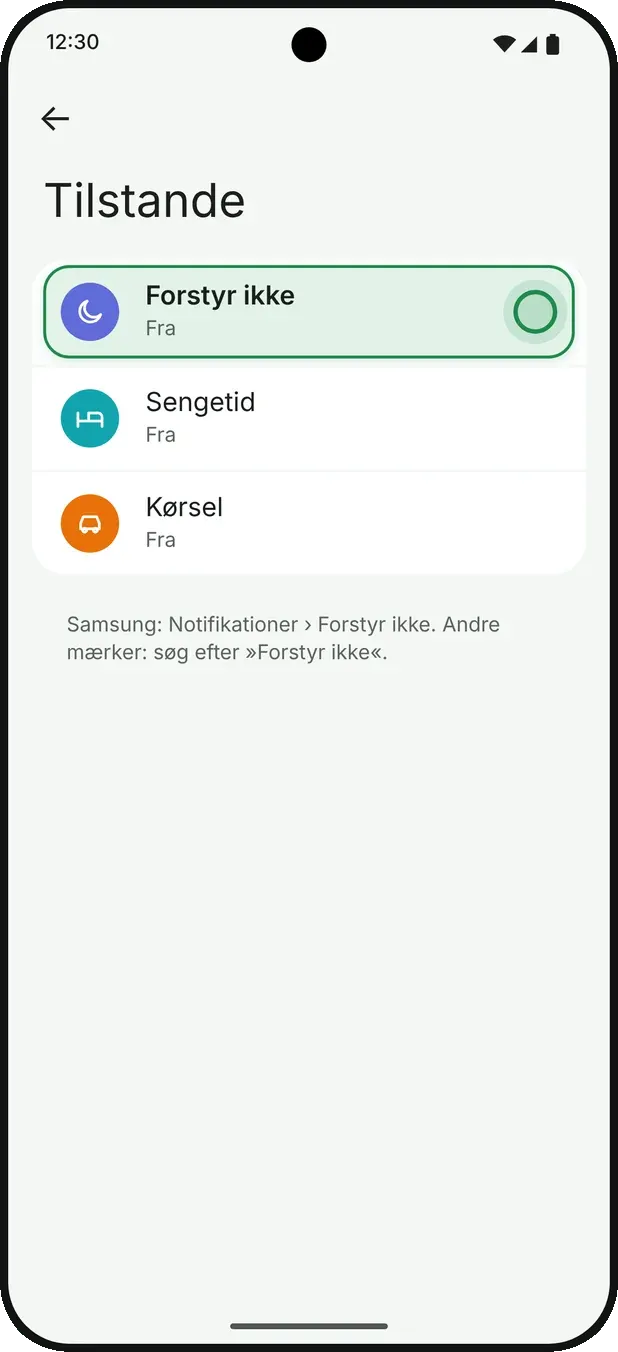
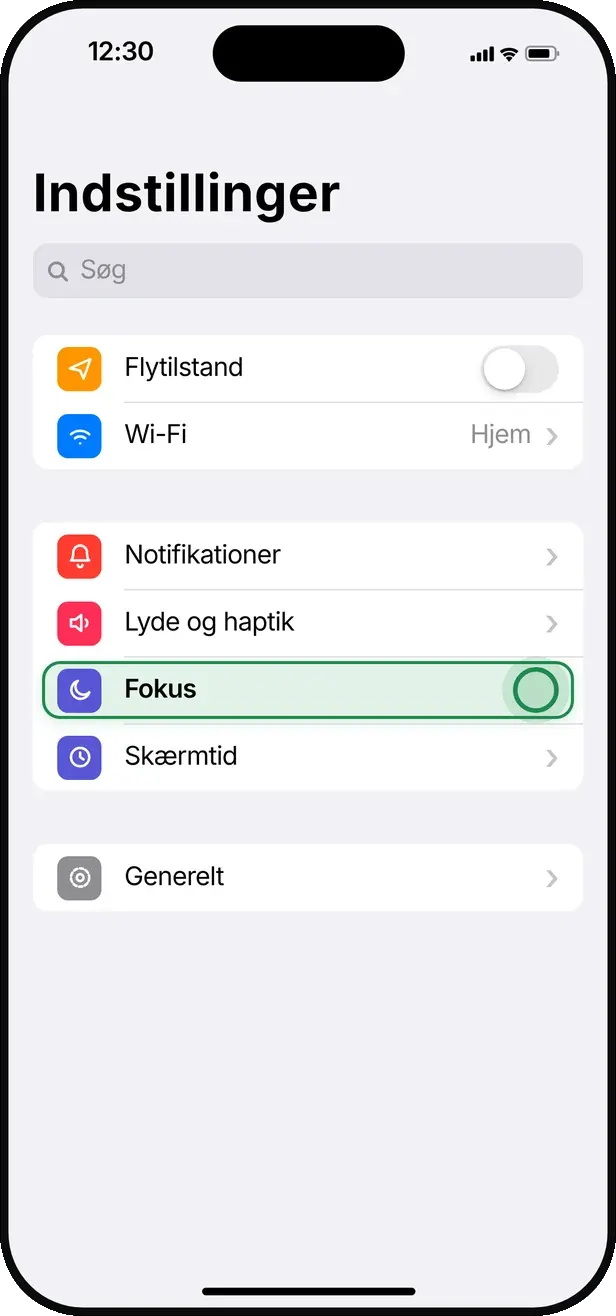
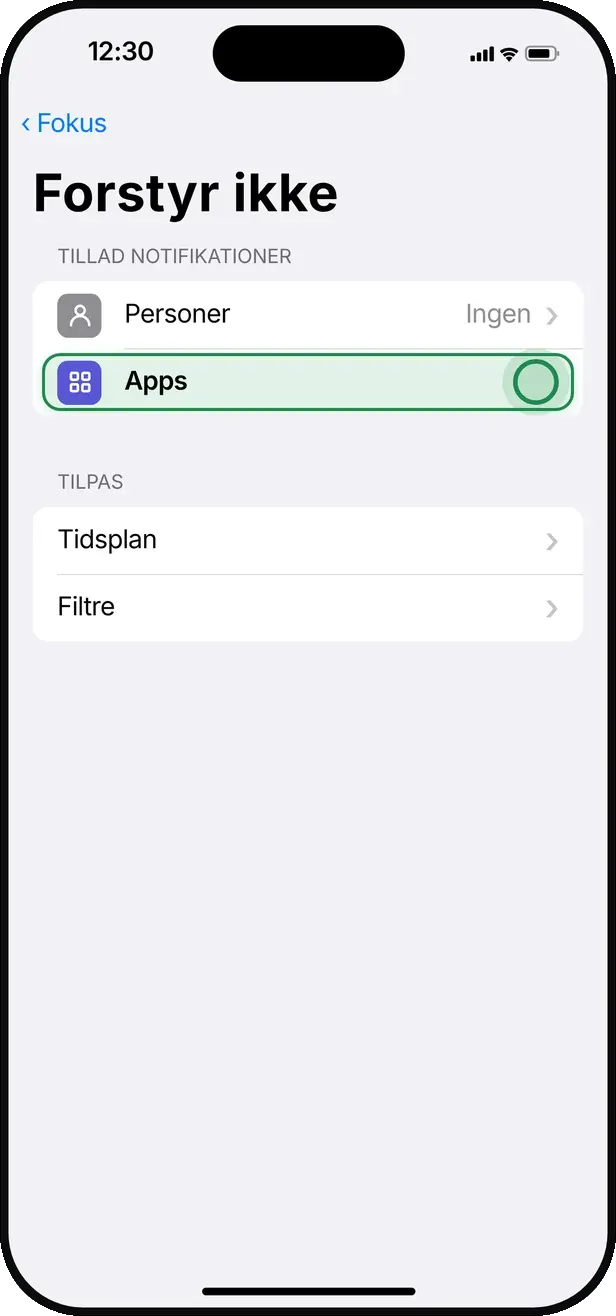
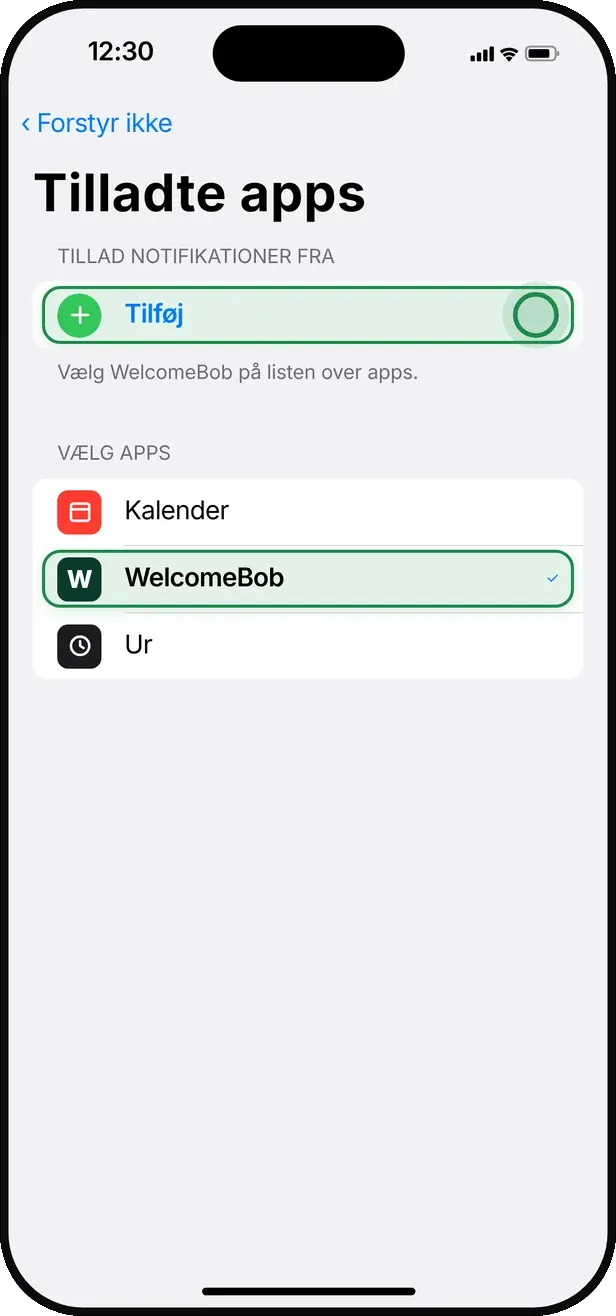
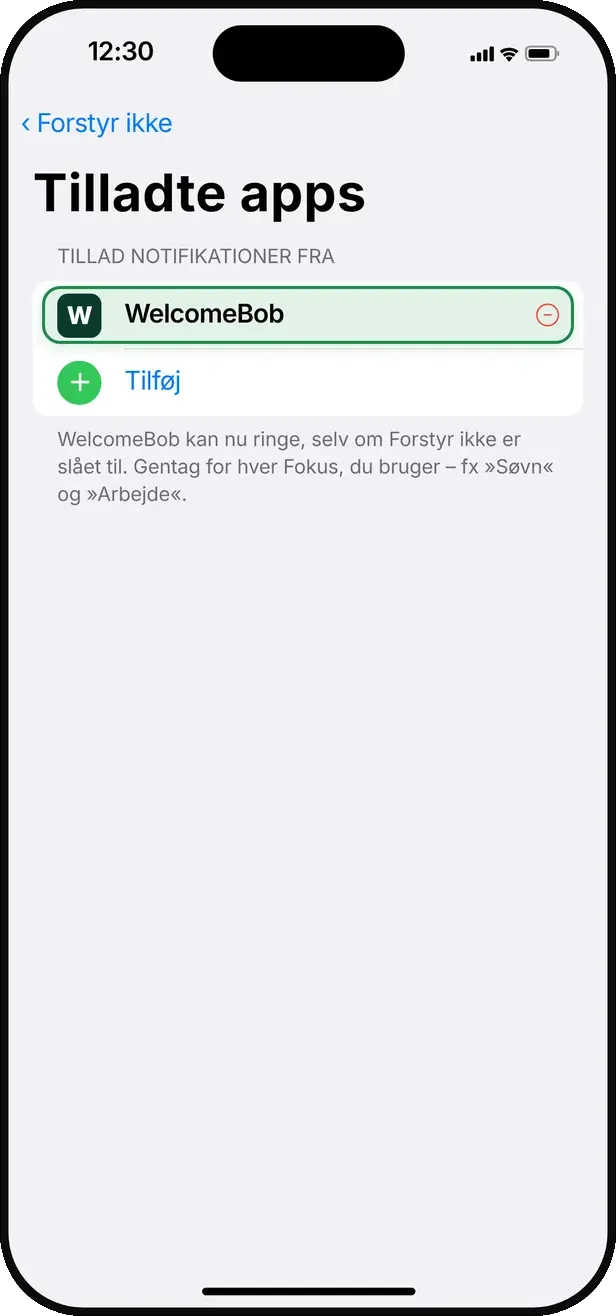
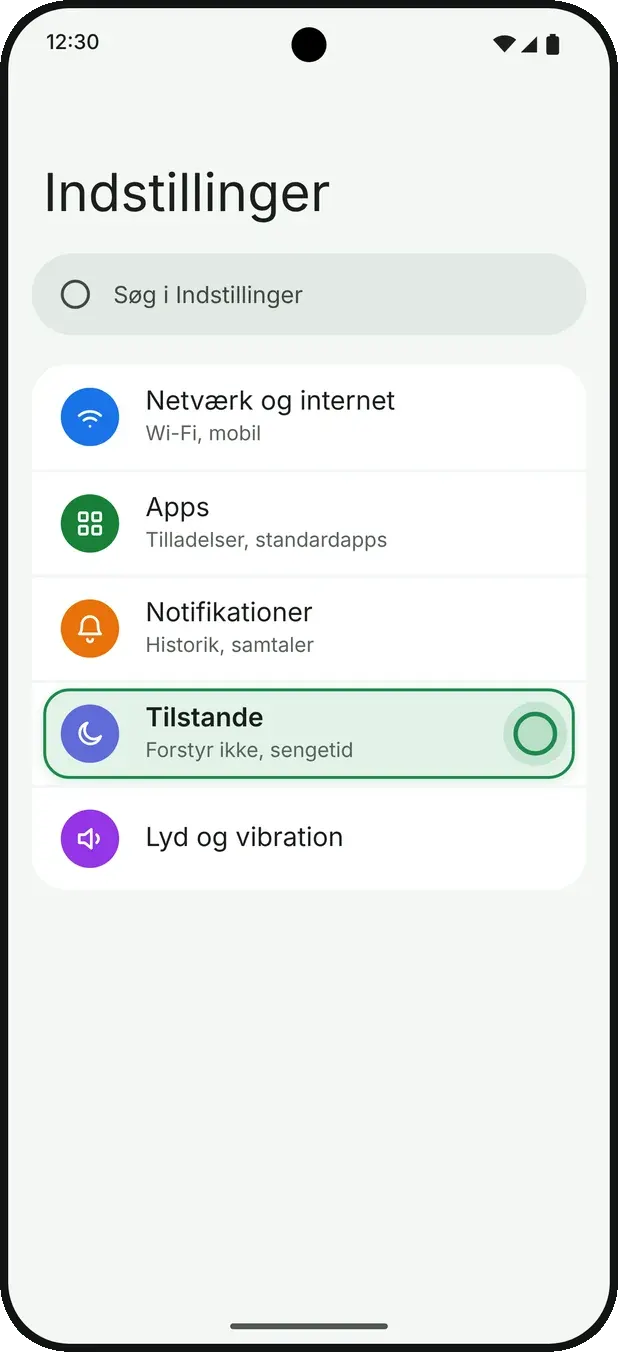
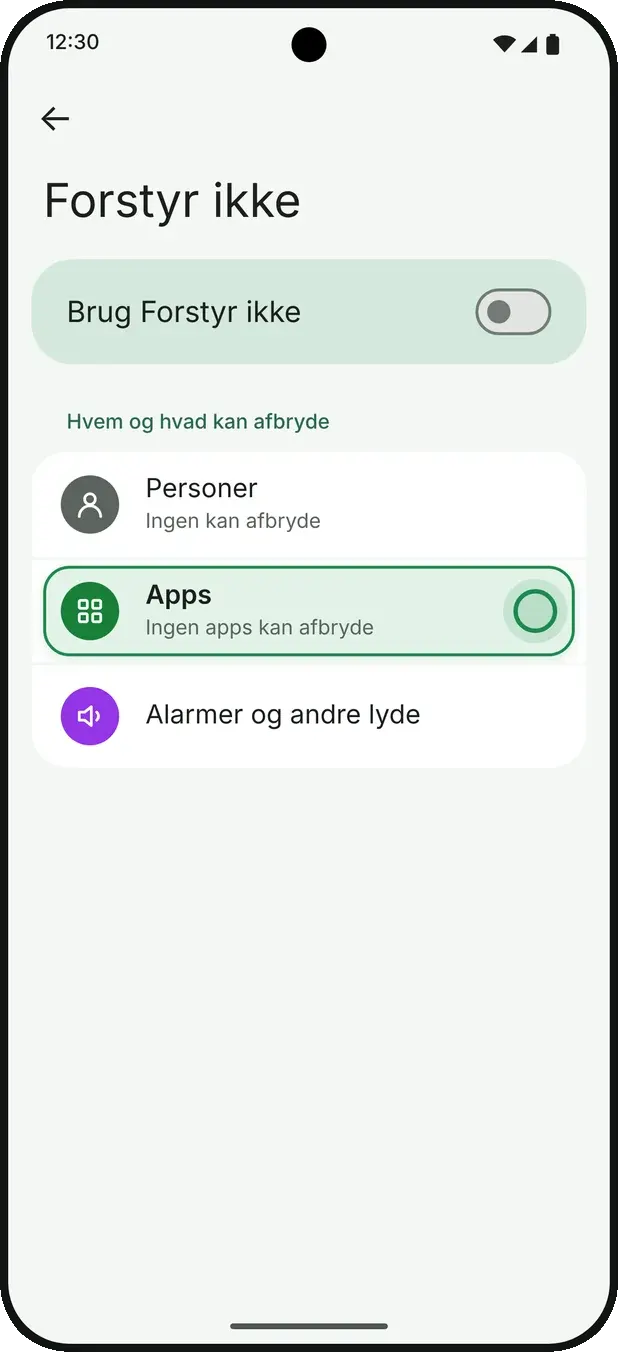
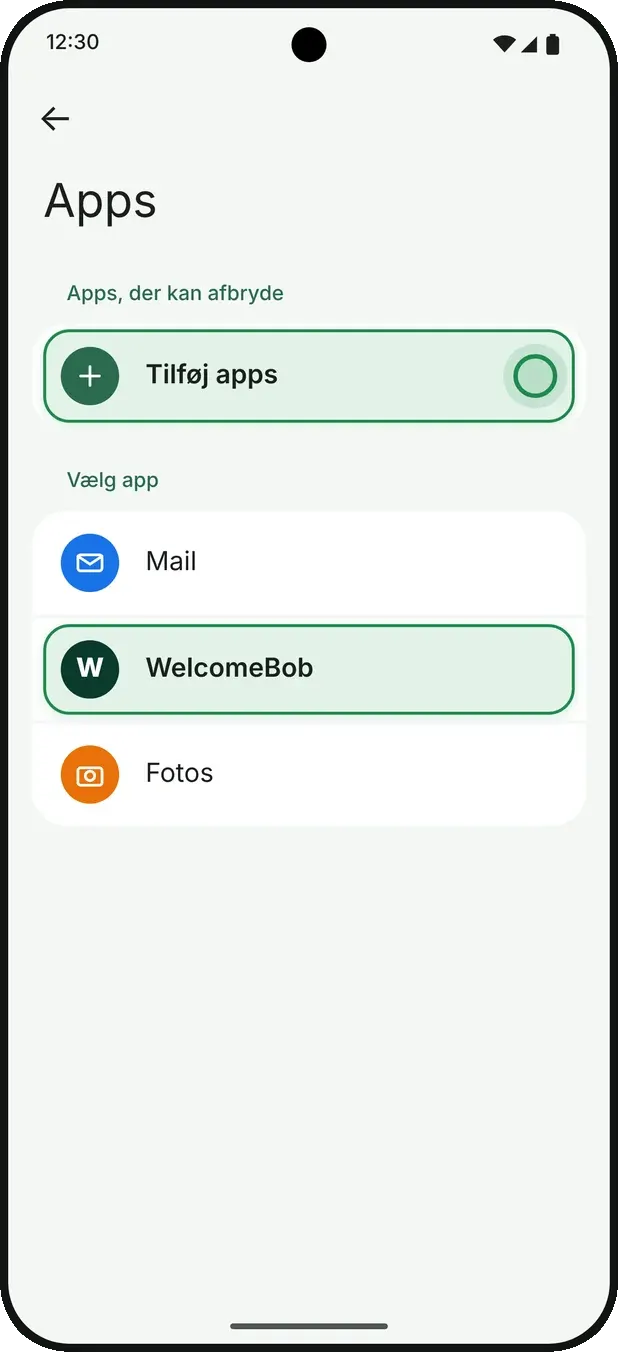
    Check Focus or Do Not Disturb

    See whether calls are being blocked by Focus mode. Turn it off or allow WelcomeBob to break through.

Good to know

  • A red warning indicator on the home screen or Account tab means something needs attention.
  • You can ask the phone to request permission again if you denied it earlier.

If something goes wrong

I still do not receive calls
Make sure your phone has internet access and that WelcomeBob is allowed to run in the background. Restart your phone if needed.

Troubleshooting and help

General advice if the app is not behaving as expected — and where to get help.

How to do it

  1. 1

    Check that the app is updated

    Open the App Store or Google Play and install the latest version of WelcomeBob.

  2. 2

    Check the network

    WelcomeBob requires internet access. Switch between Wi‑Fi and mobile data to rule out connection issues.

  3. 3

    Restart the app

    Fully close WelcomeBob and open it again. This solves most temporary issues.

Good to know

  • If the app shows ‘Update required’, you need to update before you can continue.
  • Contact your administrator if the issue is about access to a specific property.

If something goes wrong

Nothing helps
Write to support and preferably include a screenshot together with a short description of what happened.

Hide your name on the intercom

Don’t want your name shown on the intercom display? You can hide it with a single tap — while your name is hidden you won’t receive calls, but you can still use the app.

How to do it

  1. 1

    Tap the eye icon next to your name

    Open the Account tab and find your name at the top. There’s a small eye icon next to it — tap it to open the visibility settings for the intercom.

  2. 2

    Choose to hide and confirm

    A tray slides up from the bottom. Choose to hide your name on the intercom and tap Confirm to save your choice.

  3. 3

    See the confirmation under your name

    The tray closes and a small line of text now appears under your name saying that you’re not shown on the intercom. Tap the eye icon again any time to show your name.

Good to know

  • When your name is hidden, you don’t receive calls, but you can still use the app.
  • You can turn the name back on at any time with the same toggle.

If something goes wrong

My name still shows on the intercom
The intercom may take a moment to refresh. Wait a minute and check again.

Troubleshooting

Try this first

Most challenges are solved with these quick checks.

  • Update the app to the latest version
  • Check that notifications are turned on
  • Check your internet connection
  • Close the app completely and open it again
  • Log out and log in again
  • Restart your phone

FAQ

Frequently asked questions

The questions we most often hear from residents.

I am not receiving calls on my app

Check that notifications are enabled for WelcomeBob. iPhone: Settings → Notifications → WelcomeBob. Android: Settings → Apps → WelcomeBob → Permissions. If it still does not work, log out and reinstall the app.

I have received an invitation but am stuck

Open the app manually from the home screen — not via the link in the email — and create an account with the exact email the invitation was sent to.

I have forgotten my password

On the login screen: press "Forgot password?", enter your email, and follow the link in the email you receive.

How do I change my password?

Open the app, press "Account" at the bottom right, select the "Password" field and enter your current and new password.

How do I change the name on the intercom?

Open the app, press the 3 dots at the top right, select "Edit display name", enter the new name and confirm.

The intercom shows blank fields

The apartment either has no associated user, or the user is logged out. Log in again — if it still does not work, contact your administrator.

Can I be logged in on multiple devices?

Yes, you can be signed in to the same account on multiple devices. When a call comes in, all your devices ring at the same time — the call stops as soon as one of them answers.

How do I change my email?

This is not possible within the app. Contact customer service for assistance.

Contact

Still need help?

We are available on weekdays 08:00–15:00.

We use cookies 🍪

We use cookies and similar technologies to improve your experience, measure traffic and show relevant content. You decide what to accept. Learn more